DWS Sensor Board Tester
Connect a DWS Sensor Board (OW-BRD001) through a USB-RS485 cable and check it from your browser. The tester shows the hydrophone spectrum, the pressure trace, the temperature and the firmware versions live. There's nothing to install.
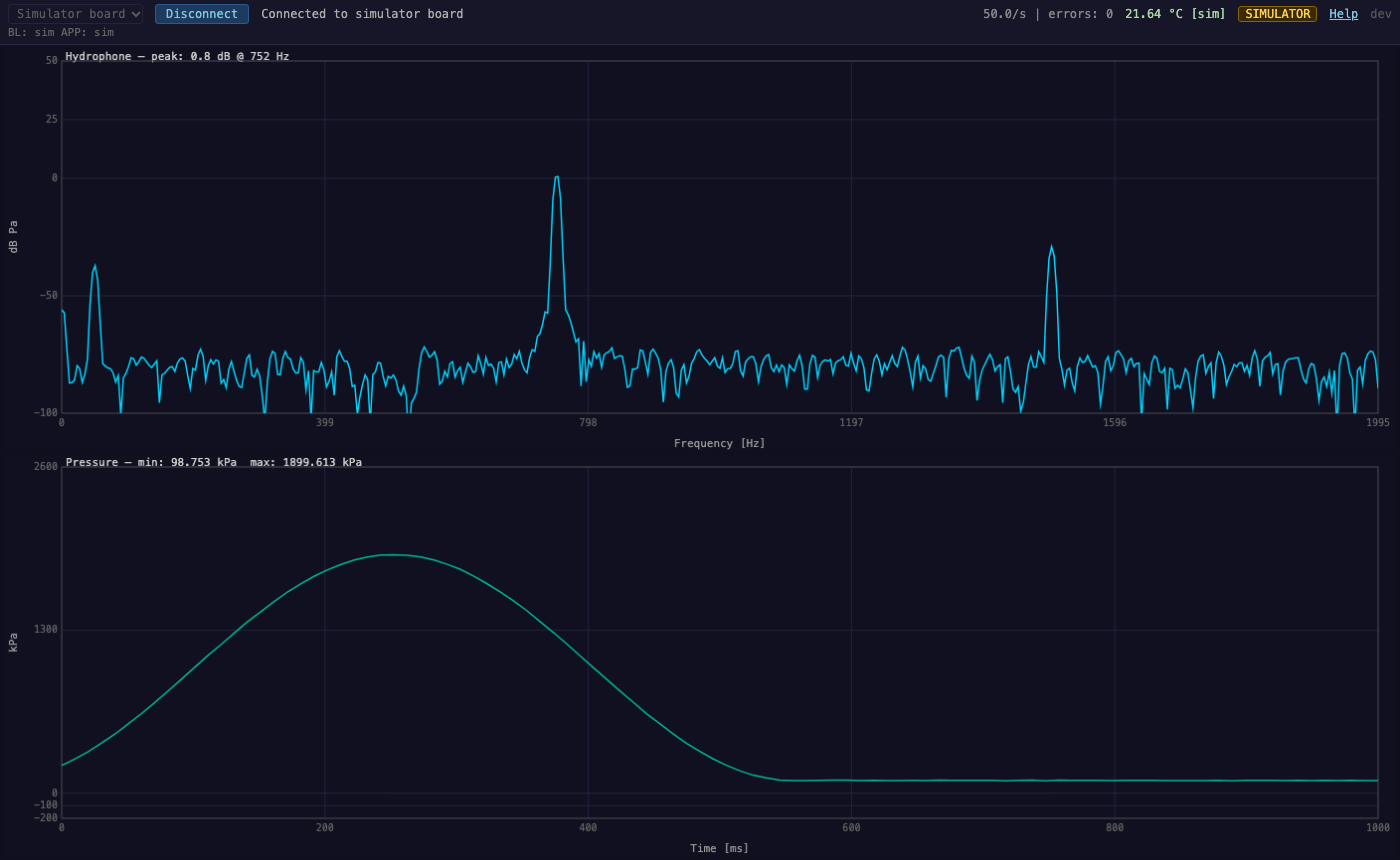
What it checks
Hydrophone
A 1024-point FFT of the hydrophone signal (sampled at 3989 Hz, DC removed, Blackman window), plotted in dB re 1 Pa from 0 to 1995 Hz. The label shows the peak level and its frequency.
Pressure
The last second of pressure readings in kPa, scrolling, with the minimum and maximum in the window.
Temperature & status
The board temperature in °C and the status string the sensor firmware reports.
Firmware & link health
The bootloader and app versions, read at connect. Also the poll rate and the number of frames that failed to parse.
Wiring
The tester talks to the board over RS-485. You need an FTDI USB-RS485-WE-1800-BT cable (USB on one end, bare wires on the other) wired to the J7 connector on the DWS Sensor Board (OW-BRD001) as follows.
| J7 pin | Board signal | Cable wire(s) | Cable signal |
|---|---|---|---|
| 1 | V+ (in) | Red | V+ (out), +5 V USB bus |
| 2 | GND | Black | GND |
| 3 | A | Orange + Green | B (D+) + 120 Ω terminator |
| 4 | B | Yellow + Brown | A (D−) + 120 Ω terminator |
| 5 | Shield | Not connected | The cable has no shield wire |
- The green and brown wires are the ends of the cable's built-in 120 Ω terminating resistor. Joining them to orange and yellow puts the terminator across the A/B pair.
- The cable's red wire carries USB bus power (+5 V nominal) to the board, so the board switches on when the cable is plugged into the PC.
How to use
- Open the tester in Chrome or Edge, with the source set to USB serial.
- Wire the RS-485 cable to the board's J7 connector (see Wiring).
- Plug the cable's USB end into the PC. This powers up the board.
- Click Connect, choose the cable's serial port in the browser's pop-up, and click Connect at the bottom of the pop-up.
- The tester talks to the bootloader, reads the firmware versions and starts the sensor app. When the status says Connected, the plots update live. Click Disconnect to release the port.
Requirements
A desktop browser with the Web Serial API: Chrome 89+ or Edge 89+ on Windows, macOS or Linux.
The tester connects at 1,000,000 baud, 8N1, with no flow control. All processing happens in your browser, and no data leaves your computer.
Simulator board
To try the tester without hardware, set the source to Simulator board and click Connect. The simulator answers the same serial protocol as a real board, so the tester goes through its normal connect sequence and then plots made-up data: a 750 Hz tone and a repeating press pulse.
While the simulator is connected, the header shows a
SIMULATOR badge and the firmware versions read sim,
so it can't be mistaken for a real board.
Running offline
The download is a single HTML file (under 100 KB) that contains the whole tester. It doesn't need an internet connection, a web server or an install.
- Download
dws-sensor-board-tester.htmland save it anywhere, such as the test bench's desktop. - Open it in Chrome or Edge: double-click it, or drag it onto a browser window. If your default browser is something else, right-click the file and choose Open with.
- Use it as described above. To check which version you have, look at the top-right corner of the tester.
Troubleshooting
- "USB serial" is greyed out, or there's a "Web Serial not supported" warning
- The browser doesn't support Web Serial. Use desktop Chrome or Edge. Until then, only the simulator board is available.
- The cable's port isn't in the list
- Check that the USB-RS485 cable is plugged into the PC. On Windows, check that the port appears in Device Manager under Ports (COM & LPT).
- "Connect failed: Failed to open serial port"
- Another program, such as a terminal, or another browser tab has the port open. Close it and try again.
- "Boot loader not responding."
- Usually the 10-second window after plugging in the cable was missed. Unplug the cable's USB end, plug it back in, and connect within 10 seconds. If it still fails, check the wiring, especially A and B.
- The error count keeps rising
- Some frames from the board aren't decoding. A few errors at connect are normal. If the count keeps rising, check the cable and the board's firmware version.